On this page
1. Getting Started
Longbox Reader is a comic viewer for your tablet or phone. There are two ways to get comics into it, and you can use either one on its own or both together:
- Upload directly — add comic files straight to the app, stored on your device.
- Connect to your home library — browse and stream everything in Digital Longbox running on your Mac or PC, over your home Wi-Fi.
No account or sign-in is required for either.
About the covers you see in these screenshots: every comic pictured on this page is a public domain title from the Comic Book Plus archive — a free, volunteer-run library of tens of thousands of legally public domain comics. We're grateful for the collection, and if you like what you see here, it's well worth exploring (and supporting) directly.
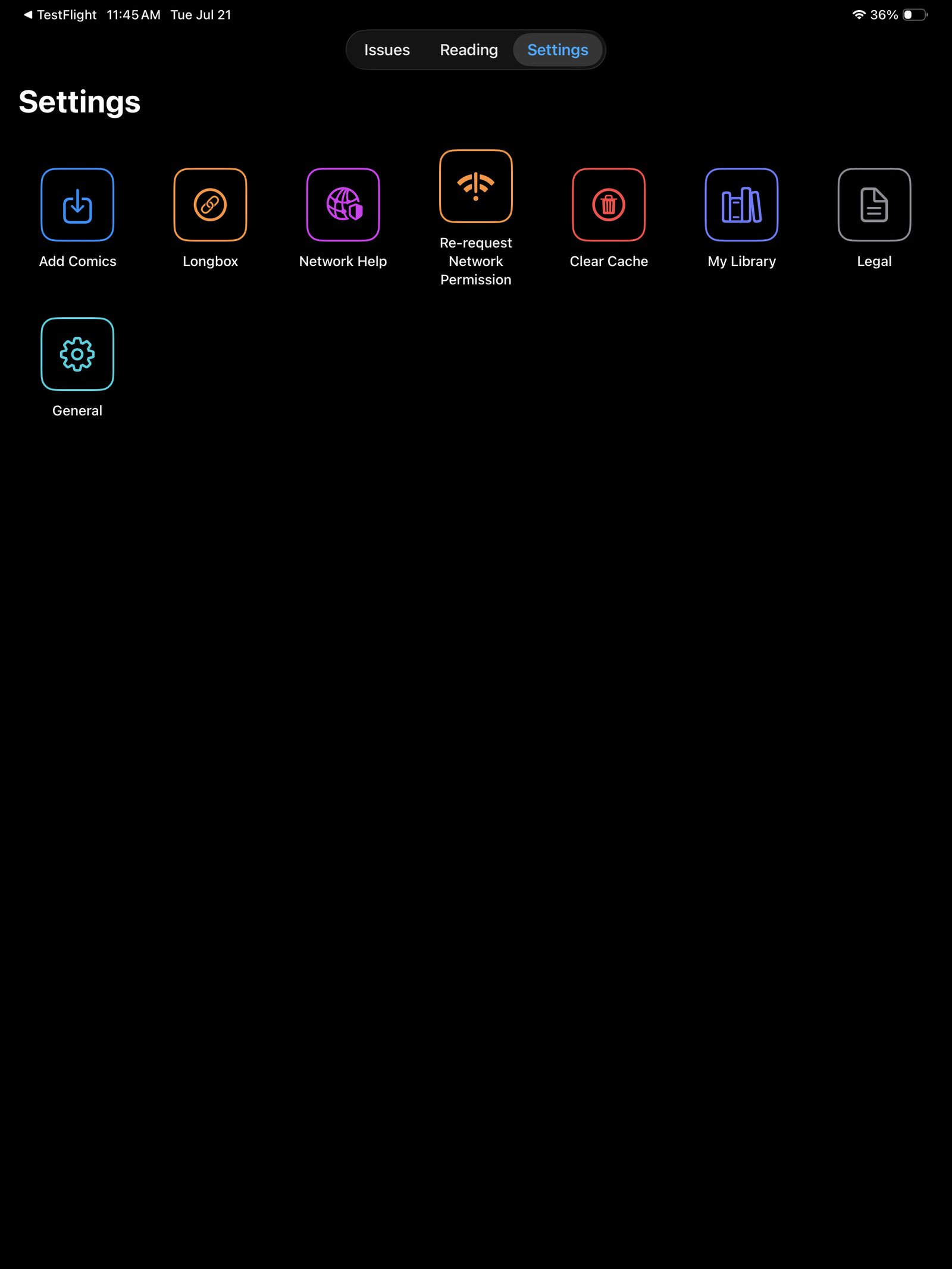
2. Uploading Comics Directly
If you just want to carry a few issues with you, you can add CBZ, CBR, or PDF files directly to Longbox Reader. These are stored on your device and available any time, with or without a network connection.
- Open Longbox Reader and choose Upload (or the + button on your library screen).
- Select one or more comic files from your device.
- Once added, they'll appear in your on-device library, ready to read.
3. Connecting to Digital Longbox
If you run Digital Longbox on a Mac or Windows PC at home, Longbox Reader can connect to it over Wi-Fi and browse your entire desktop collection — no need to copy every file onto your device.
Before you connect: make sure Digital Longbox's server is turned on. In Digital Longbox, go to Settings → Server and enable Enable Server. See the Digital Longbox server guide for details.
- Make sure your tablet or phone is on the same Wi-Fi network as the computer running Digital Longbox.
- In Longbox Reader, open Connect to Server (or the server/browse screen). Longbox Reader automatically searches for Digital Longbox on your network — there's nothing to type or enter.
- When your server appears in the list, tap it to connect. If it doesn't show up within a few seconds, tap Search Again.
- Once connected, your full desktop library appears for browsing and streaming.
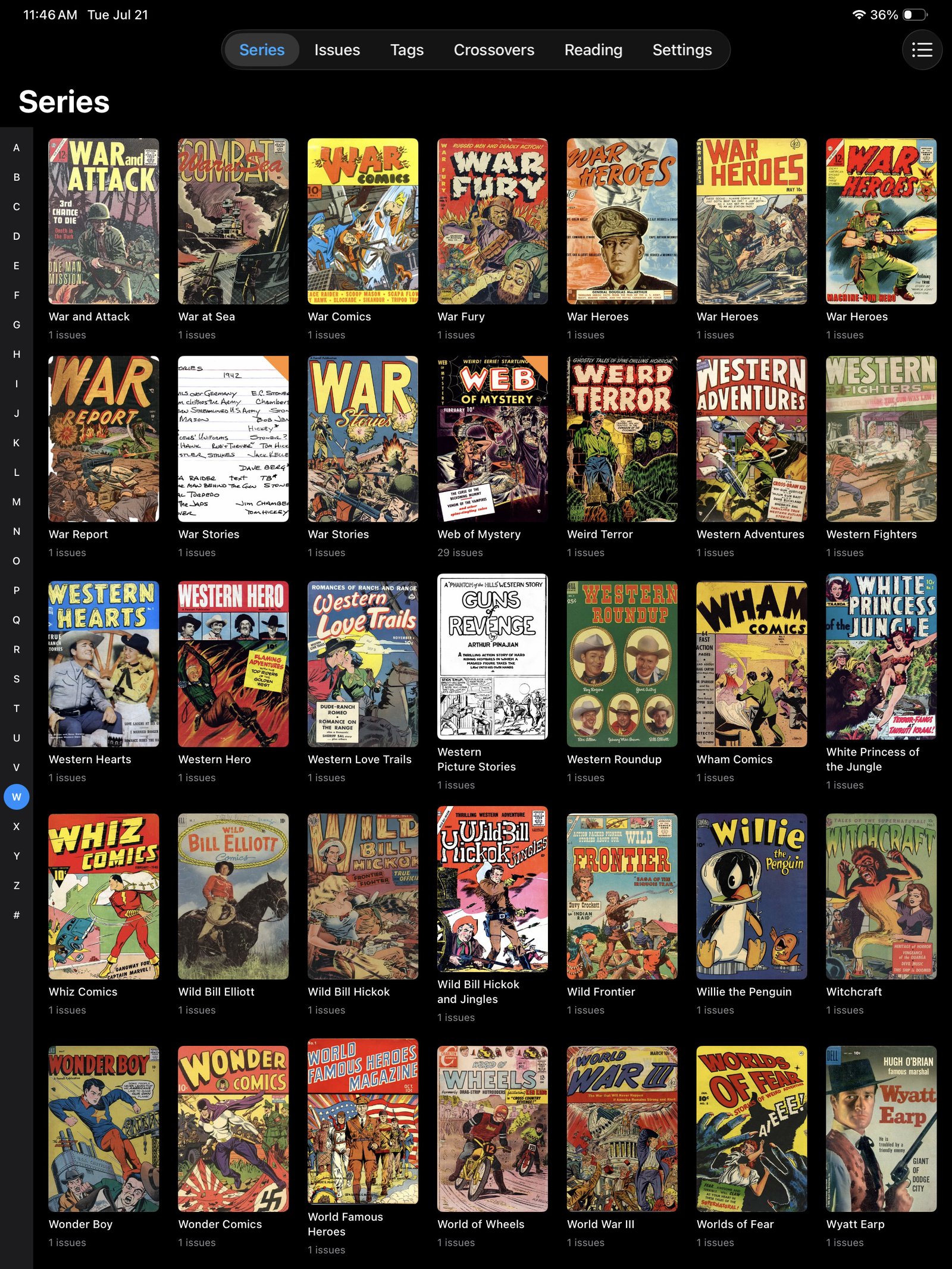
The server connection only works over your local home network. It won't work over cellular data or a different Wi-Fi network — if you leave home, download the comics you want beforehand (see below).
4. Downloading for Offline Reading
While connected to your Digital Longbox server at home, you can download individual comics to read later without a connection — handy before a trip, a commute, or anywhere your home Wi-Fi doesn't reach.
- Browse to the comic you want while connected to your server.
- Choose Download.
- Downloaded issues appear in your offline library and open the same way as directly uploaded comics.
5. Reading Your Comics
Whether a comic was uploaded directly or downloaded from your server, reading works the same way: tap to open, swipe or tap to turn pages, and pinch to zoom in on panel detail.
6. Troubleshooting
Longbox Reader can't find or connect to my server
- Confirm both your device and your computer are on the same Wi-Fi network (not a guest network, and not cellular data).
- Confirm Digital Longbox's server is turned on — check Settings → Server on the desktop app.
- If your server doesn't appear in Longbox Reader's list, tap Search Again — discovery can occasionally take a few seconds, especially right after turning the server on in Digital Longbox.
- Some routers isolate devices from each other for security — if you've confirmed everything above and it still won't connect, check your router's "AP isolation" or "client isolation" setting.
- On Windows: if the server shows as running in Digital Longbox but nothing can connect, this is usually Windows Firewall or a third-party antivirus (Bitdefender, Norton, McAfee, etc.) silently blocking the connection. See the Windows-specific troubleshooting steps in the Digital Longbox guide.
A downloaded comic won't open
Try downloading it again — an interrupted download over a weak Wi-Fi signal is the most common cause. If the issue persists, check that the same comic opens correctly directly in Digital Longbox on your desktop.
7. Contact Support
Still stuck? Reach out and we'll help you sort it out.
8. Report an Issue / Feature Request
Found a bug, or have an idea that would make Longbox Reader better? Bugs and feature requests are tracked publicly so you can see what's already been reported.
- Search existing issues to see if it's already been reported.
- If not, report a bug or request a feature, and select Longbox Reader (iPad) or Longbox Reader (Android) from the app dropdown.